Overview
EngageBay is an affordable all-in-one marketing, sales, and support CRM platform for small businesses. By integrating VTS with EngageBay you can send SMS messages and make calls to your EngageBay contacts.
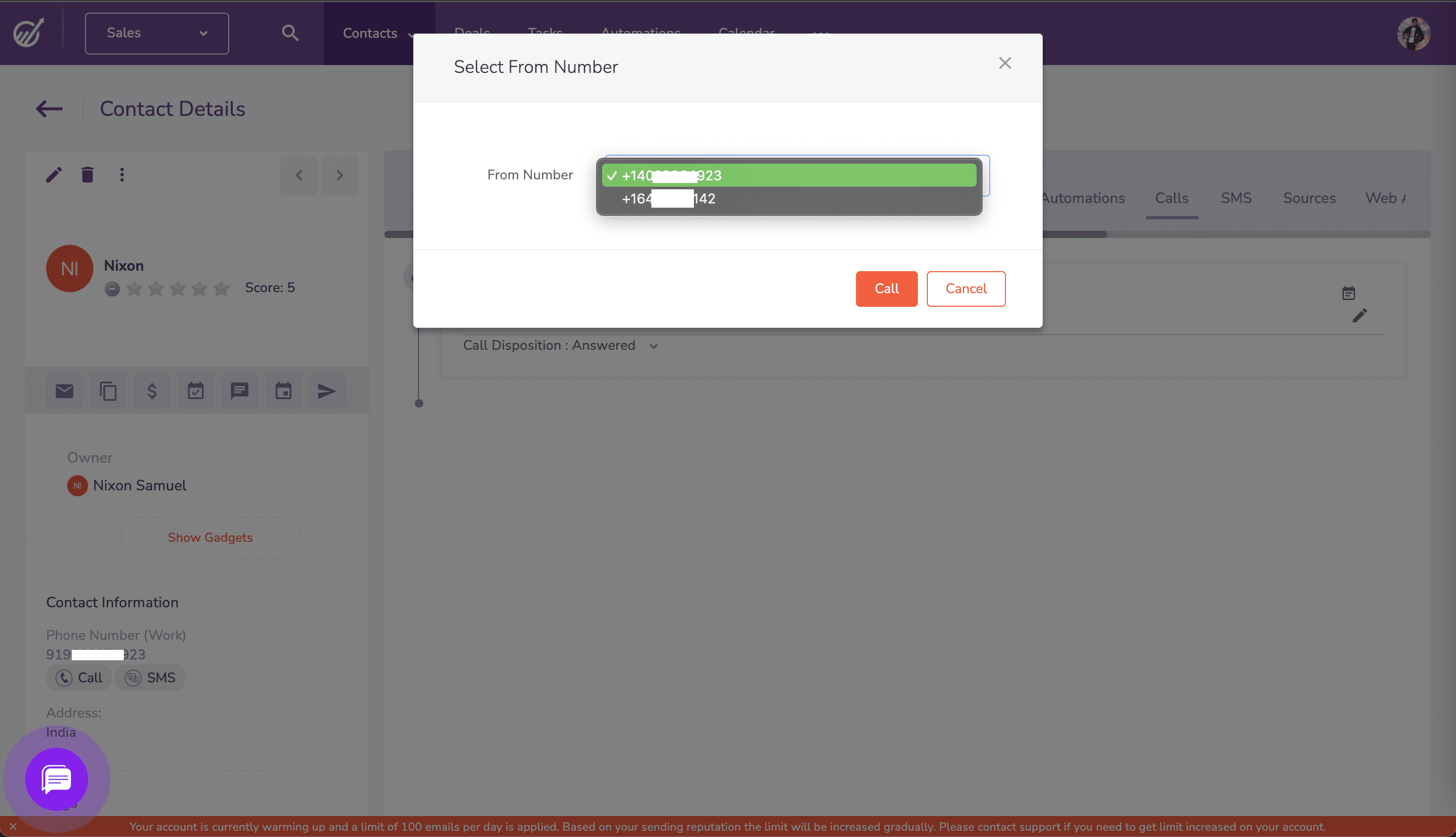
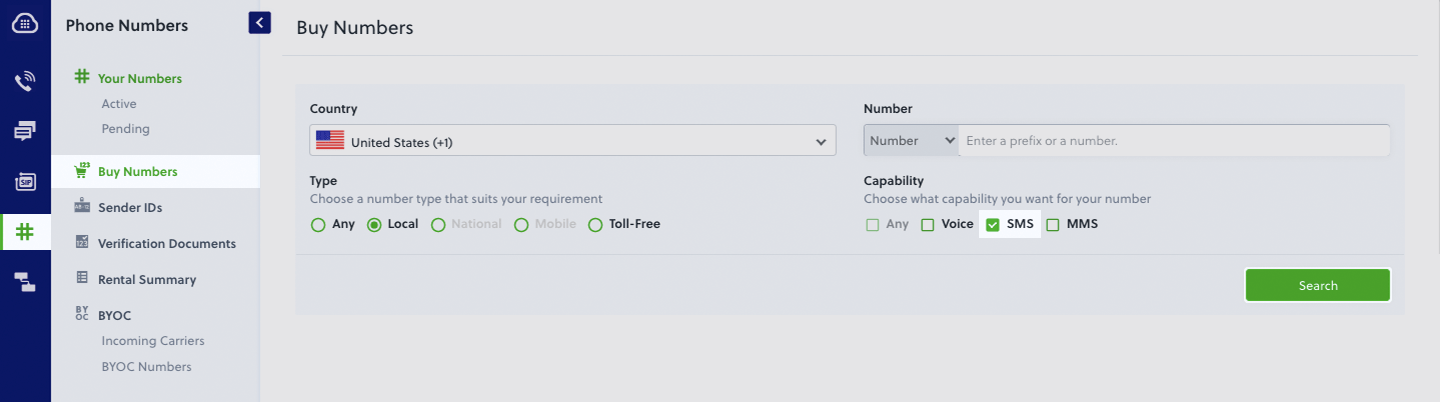
To use VTS with EngageBay, you’ll need an EngageBay account and a voice- and SMS-enabled VTS phone number. You can purchase numbers from the Phone Numbers page of the VTS console, or by using the PhoneNumber API.
Set up VTS in EngageBay
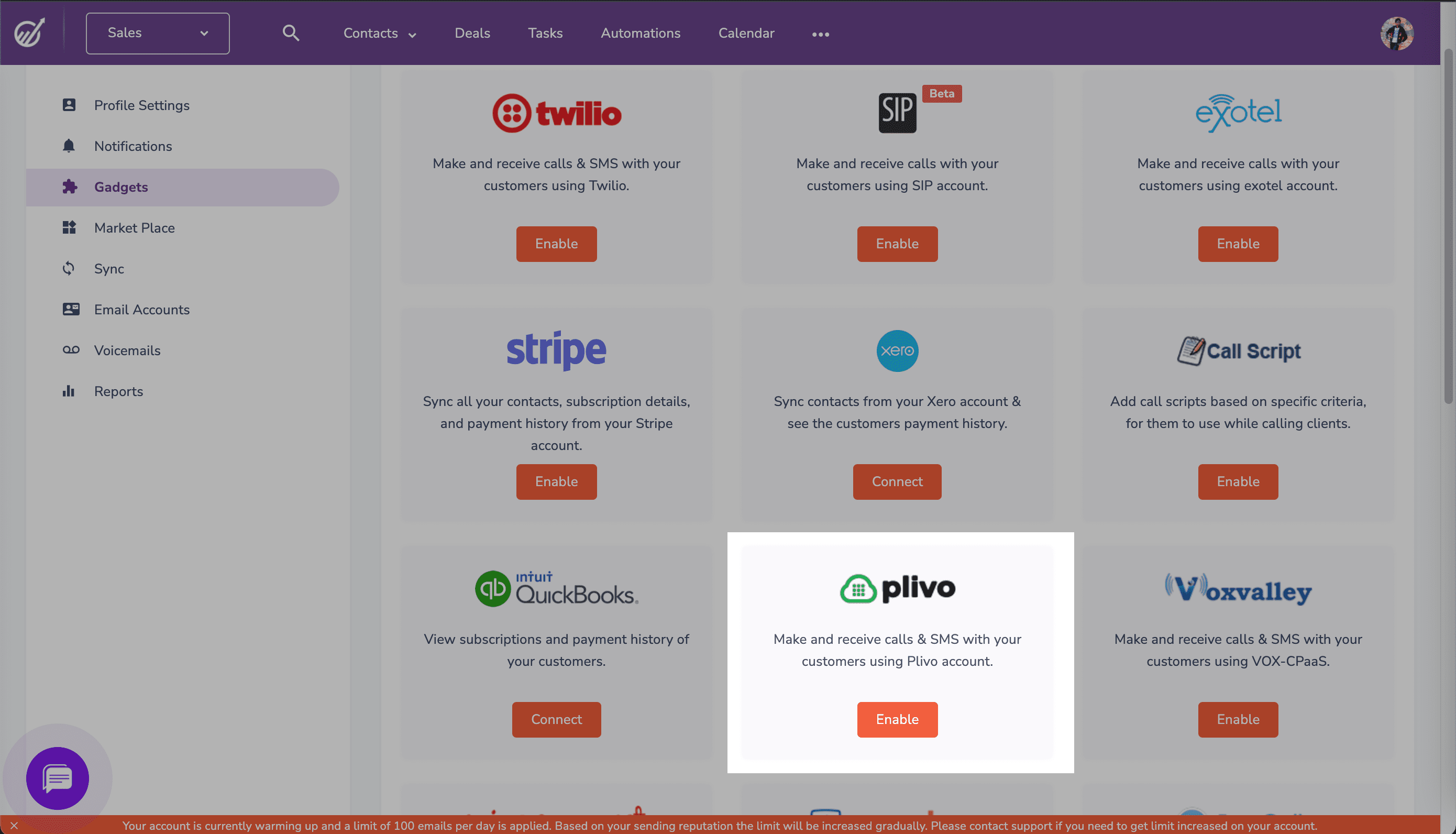
To get started, log in to the EngageBay dashboard, click on the Profile drop-down at the top right, then Preferences > Gadgets > VTS (click Enable).
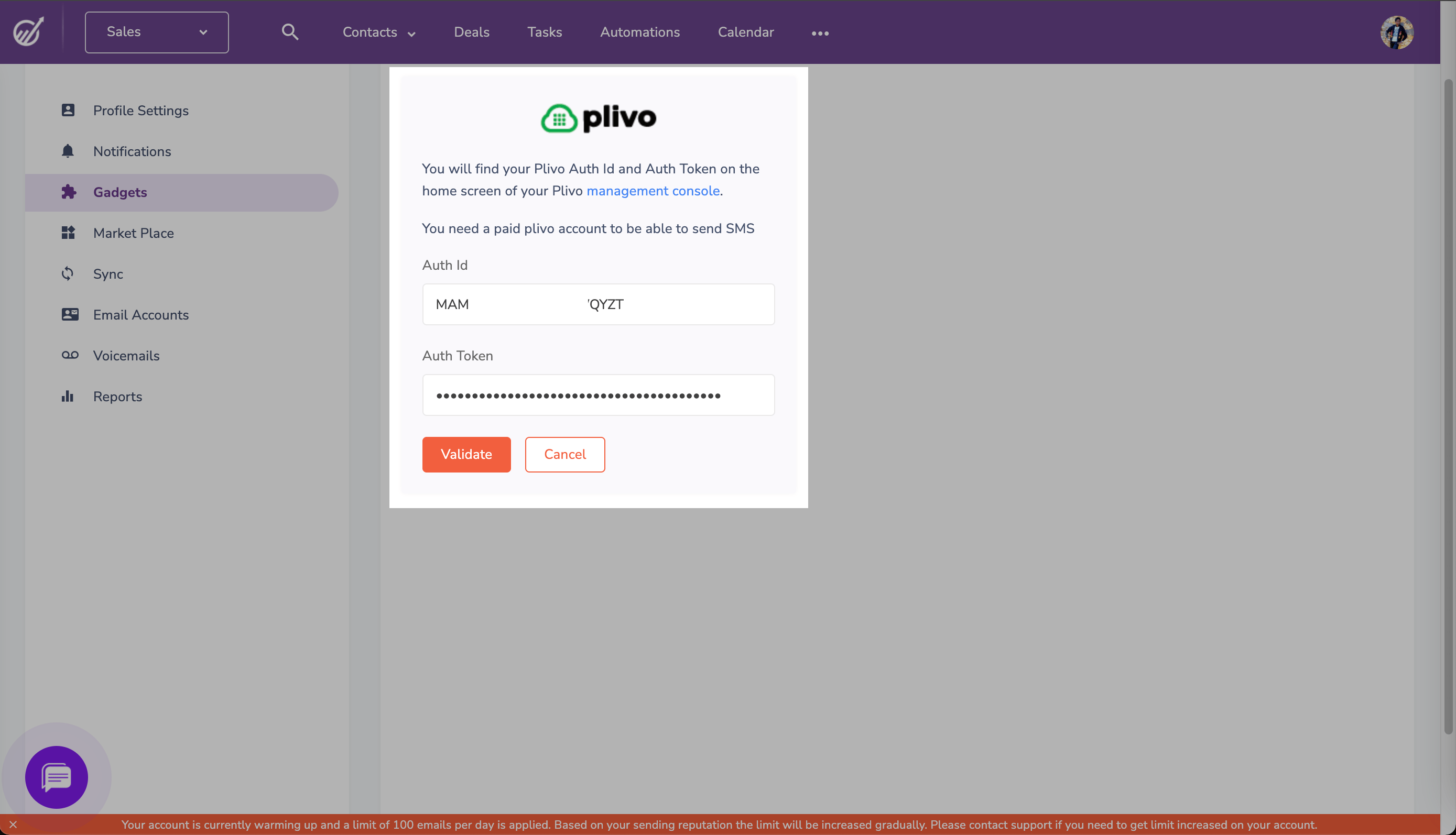
Enter your VTS Auth ID and Auth Token, which you can find on the overview page of the VTS console, and click Validate.
Once you validate your credentials, the next screen will prompt you to choose the VTS phone numbers you want to enable on EngageBay. Choose the options you want and click Save.
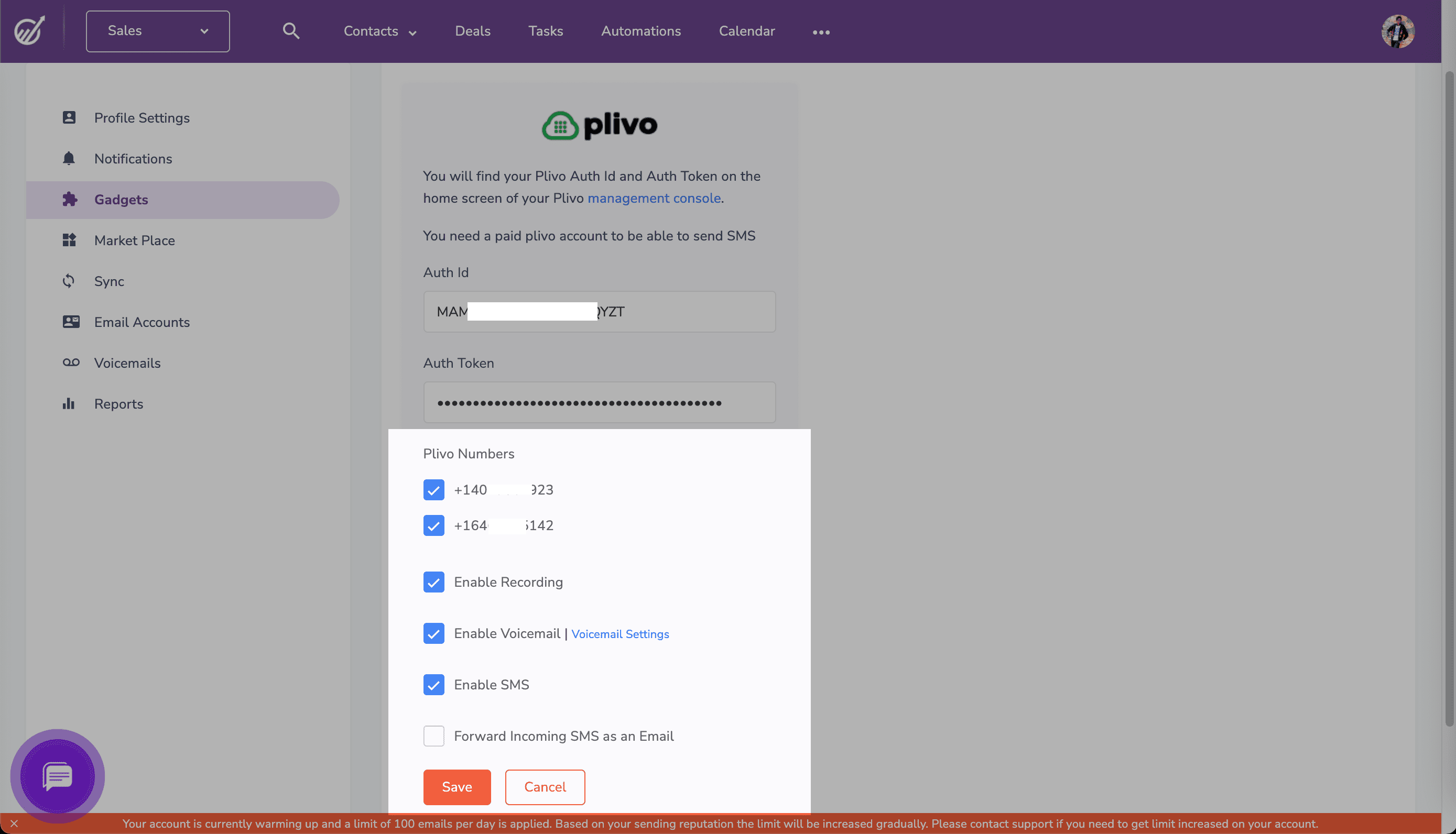
Now you can use your VTS number within EngageBay to send SMS messages and make voice calls.
Send SMS messages using VTS
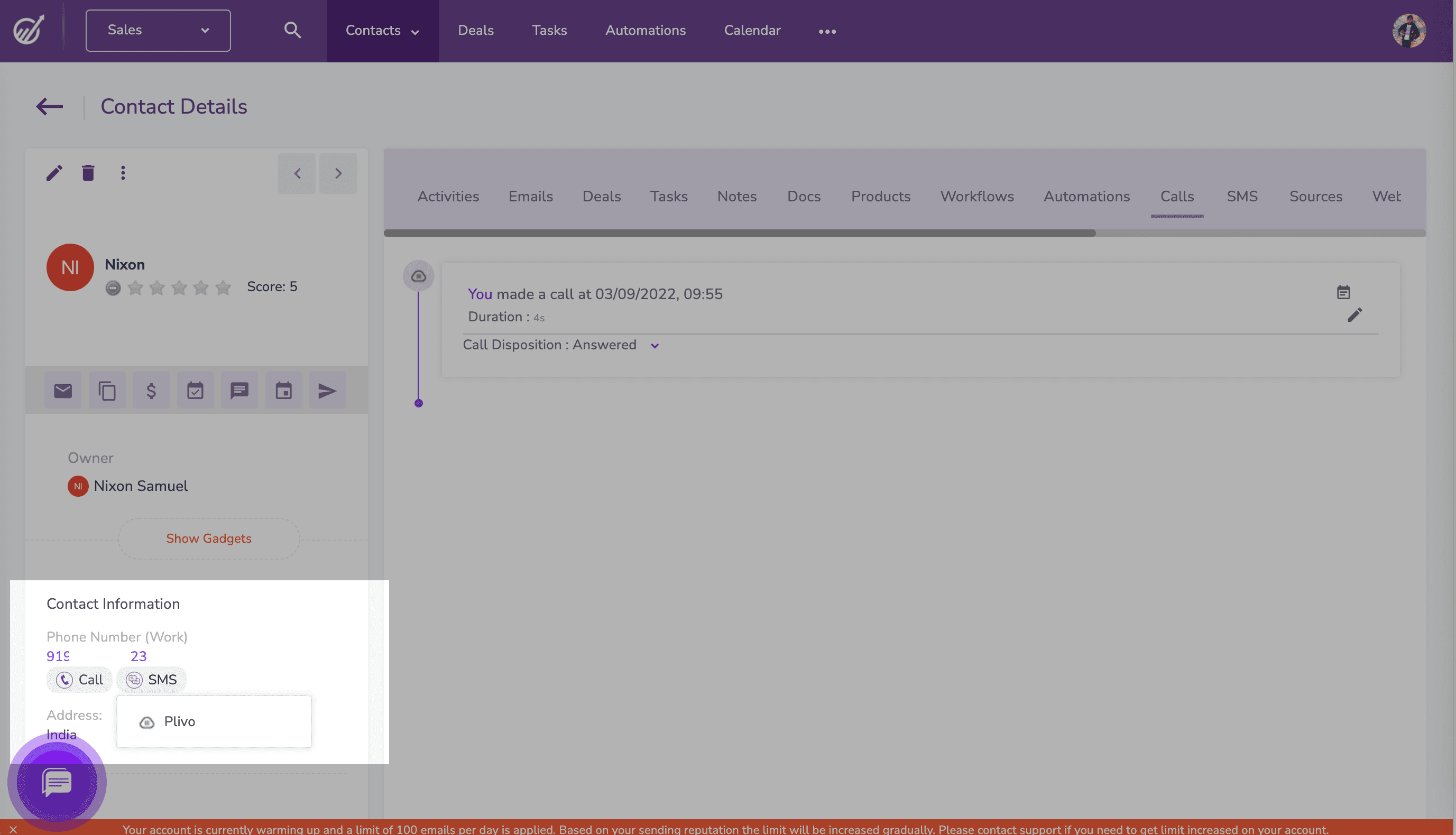
To send a text message, navigate to the contact you want to send a message to. Under the phone number in the left pane click SMS, then select VTS from the drop-down menu.
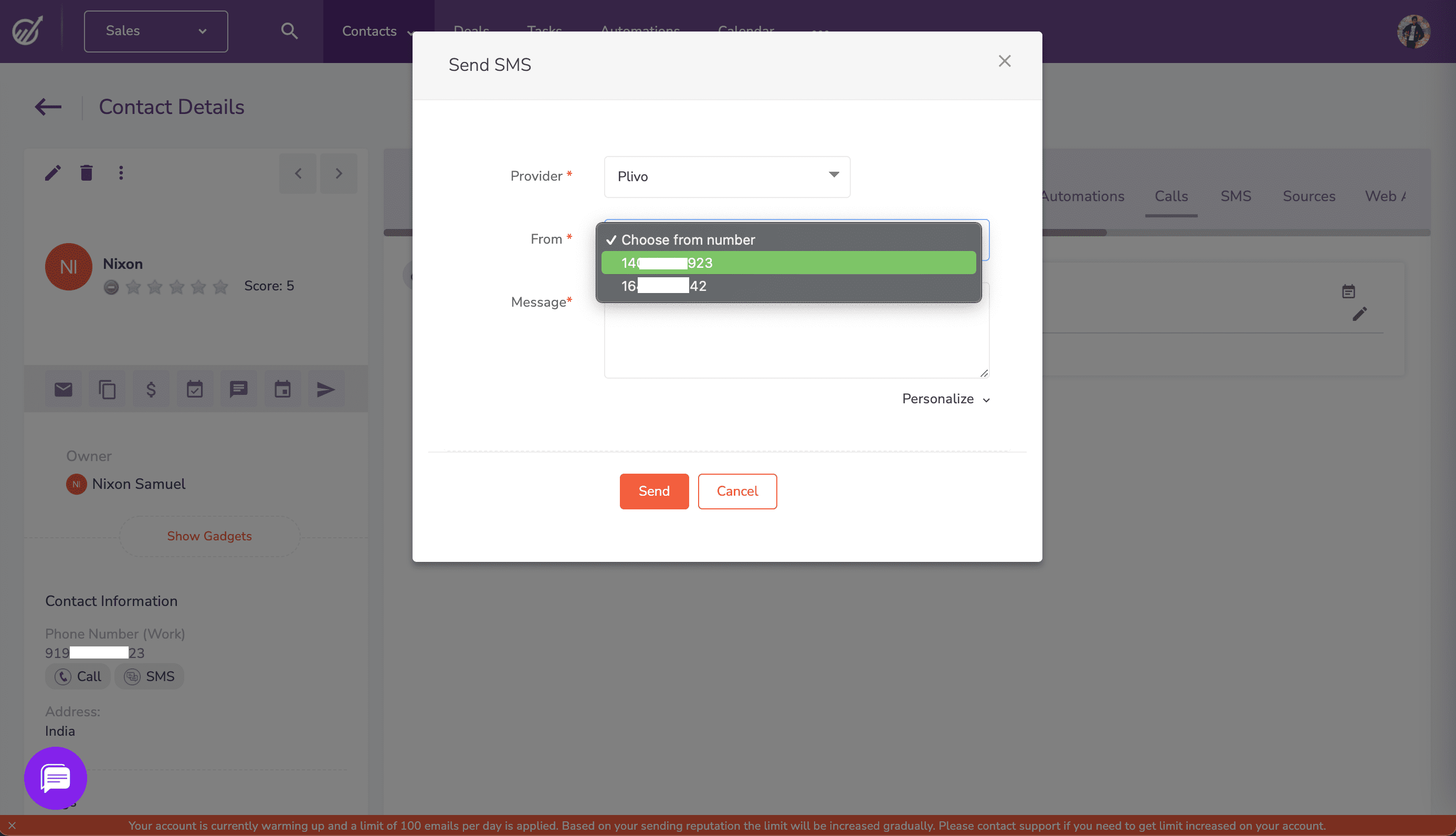
A pop-up appears that prompts for the From number and message text you want to use. Fill in the details, then click Send. EngageBay will send the message to the contact’s phone number using VTS as the SMS provider in the background.
Make calls using VTS
To make a call, navigate to the contact you want to call to. Under the phone number in the left pane click Call, then select VTS from the drop-down menu.
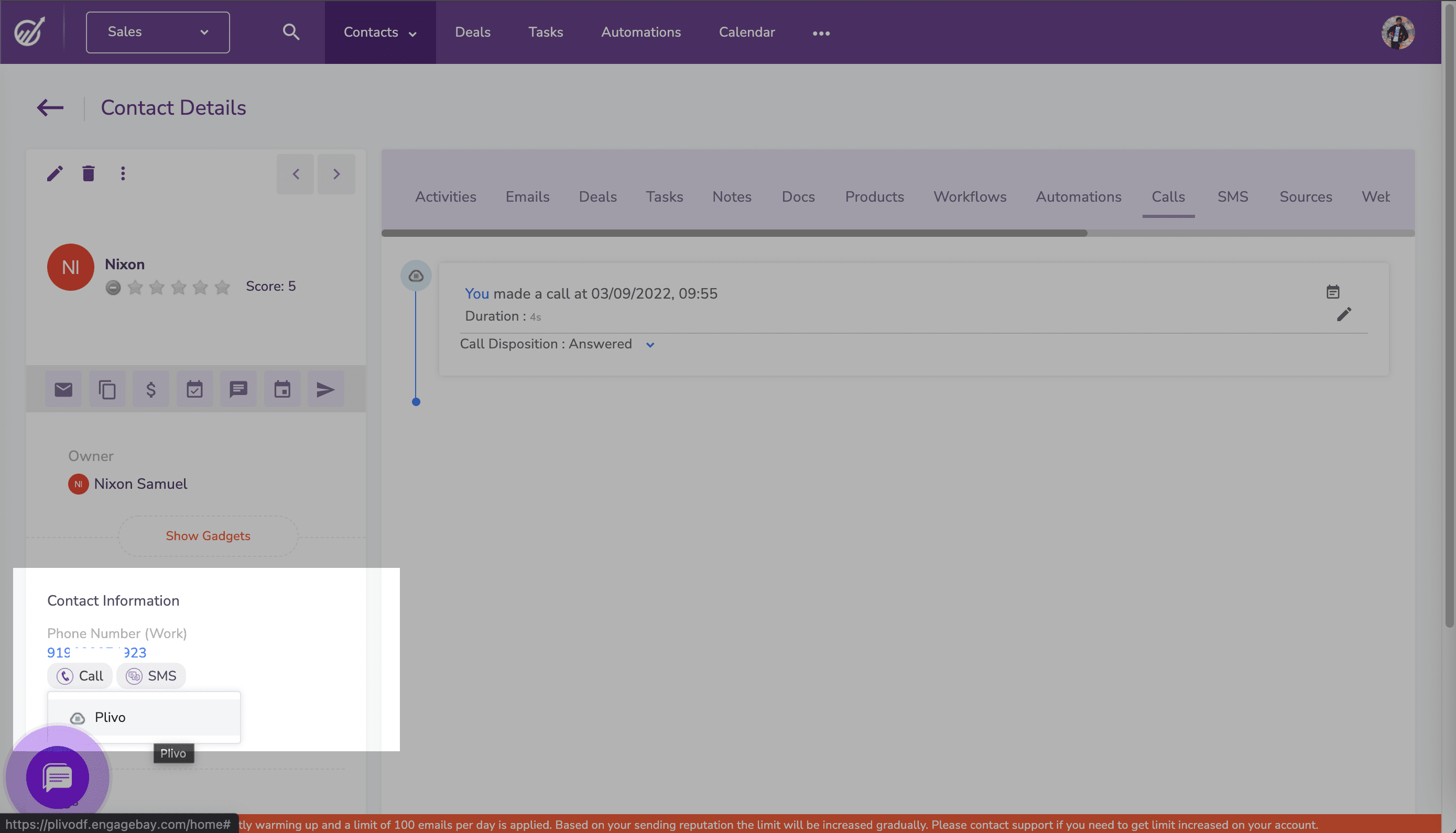
You’ll be asked to choose one of the VTS numbers as the caller ID for the call. Once you select the phone number, EngageBay will call the contact’s phone number using VTS as the voice provider in the background.