
Integrately
Integrately is a one-click application integration platform that supports VTS integrations, so you can connect VTS with other applications to create complex workflows.
To start using VTS with Integrately, you’ll need
- An Integrately account
- Your VTS Auth ID and Auth Token: You can find your VTS Auth ID and Auth Token on the overview page of the VTS console.

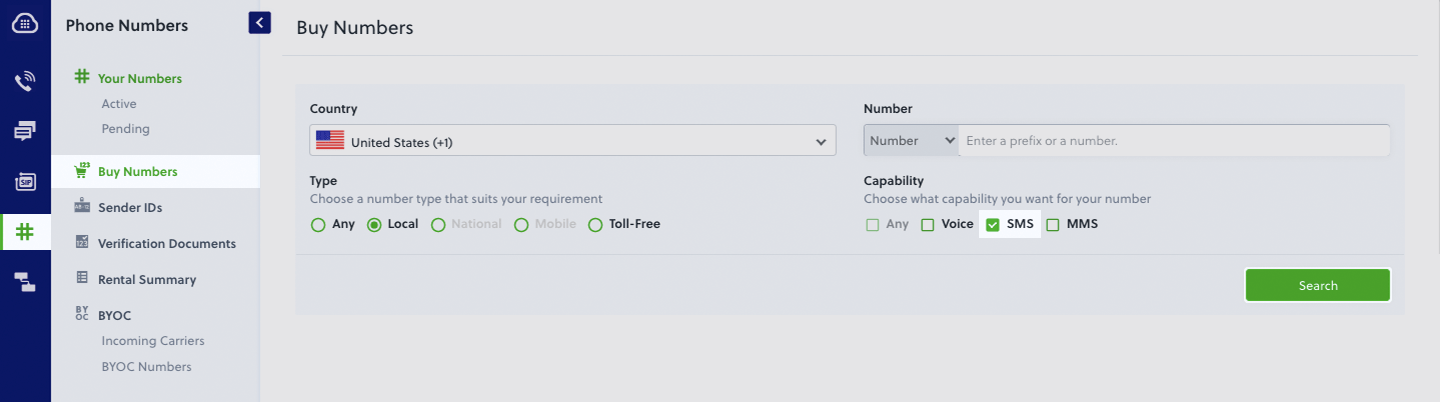
- A VTS number (optional): You must have an SMS-enabled VTS phone number to send SMS messages to numbers in the US and Canada. Purchase numbers from the Phone Numbers page of the VTS console, or by using the PhoneNumber API.
Supported triggers
You can trigger an integration when
- you receive an SMS message on your VTS number
- you receive a call on your VTS number
Supported actions
When a VTS integration is triggered, you can
- send an SMS message
- make a voice call
Note:
If you’re using a VTS trial account, you can send messages and make calls only to verified sandboxed numbers.
Report any feedback or problems with this integration by contacting the VTS support team.
Example automation
You can create an automation to send an SMS message when a row is updated in a Google Sheet.
- Go to the Integrately Store, click on the “+” sign, and add the Google Sheets app next to VTS.
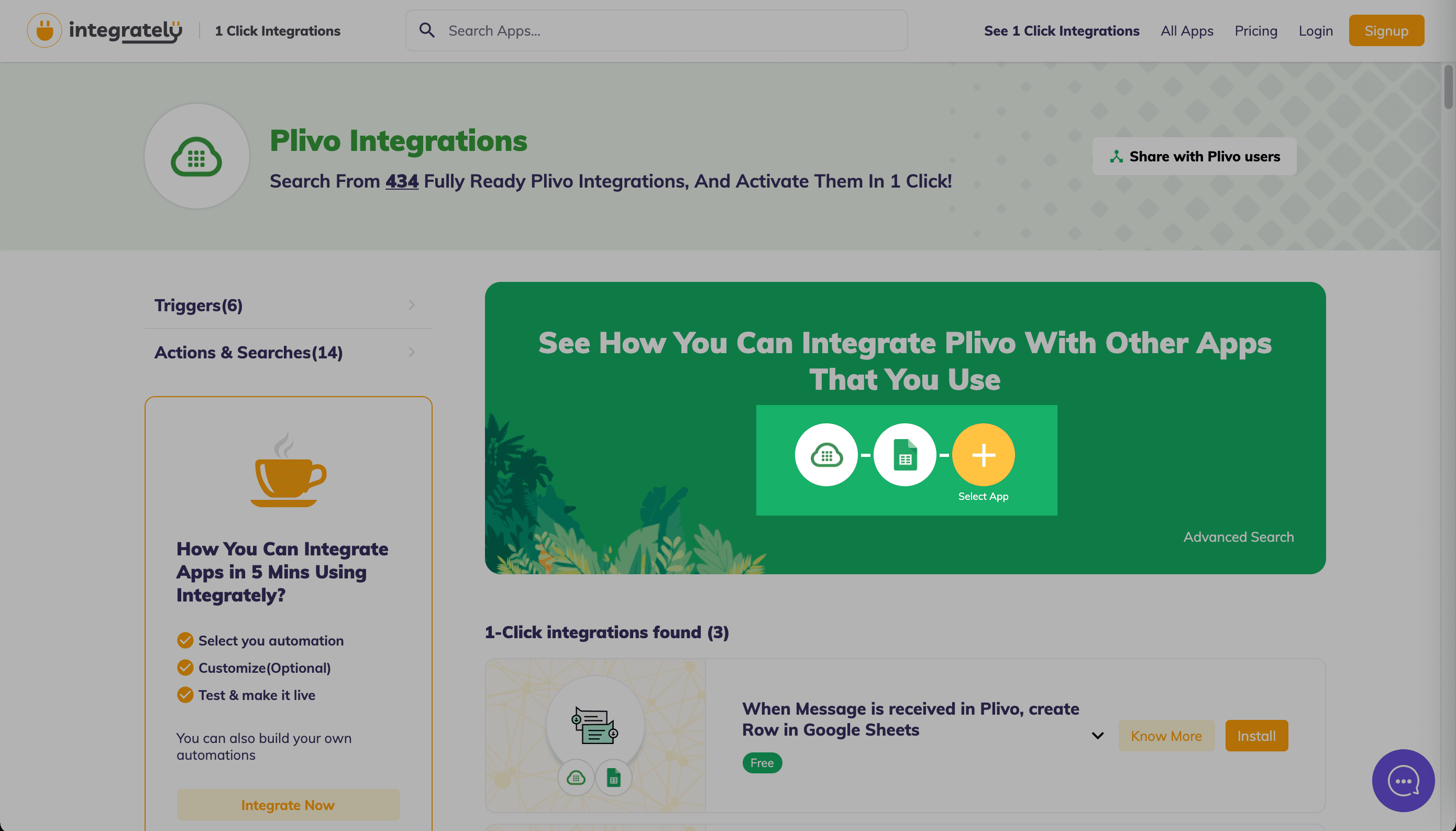
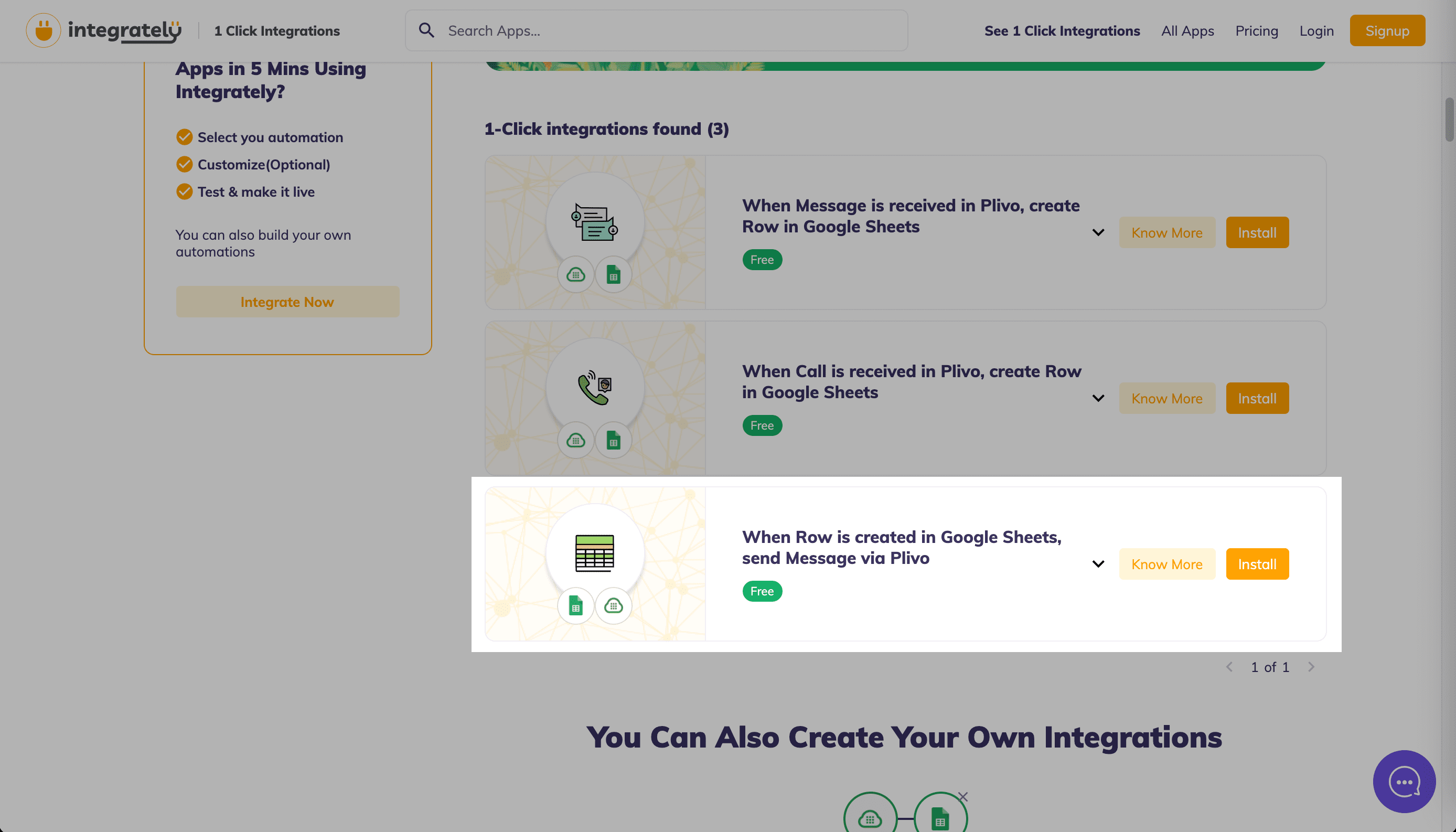
- From the “1-Click integrations found” section, select “When Row is created in Google Sheets, send Message via VTS” and click Install.
- On the next screen, click Yes, Install to load the automation.
- Connect your Google account and your VTS account using valid authentication credentials.
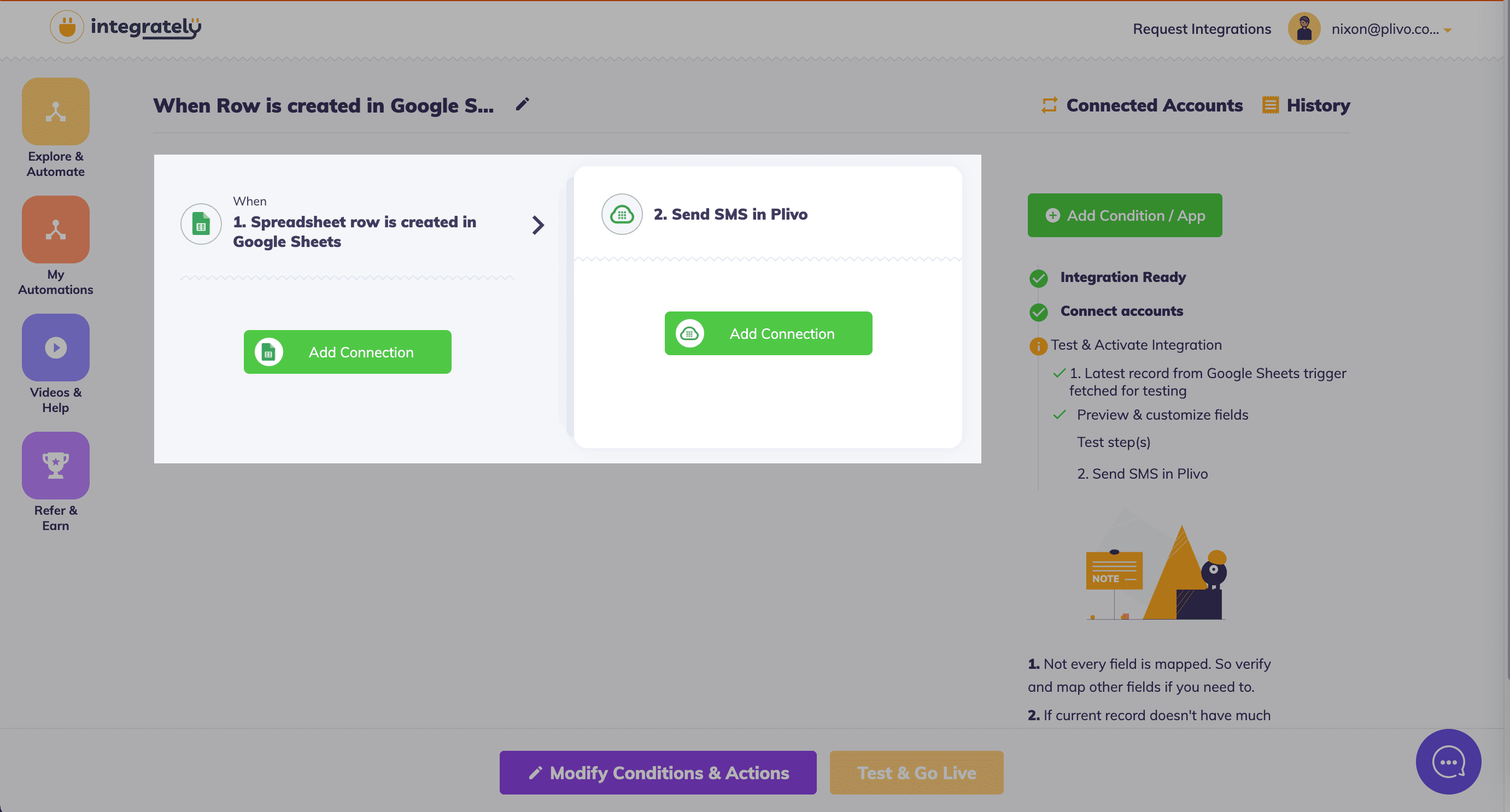
- Select the Google Sheet name and Spreadsheet name for which you wish to implement the automation.
- Fill in the source number, destination number, and text to send.
- Click Test & Go Live to test your automation.
More 1-click Automations
Rate this page
🥳 Thank you! It means a lot to us!
×
Help Us Improve
Thank you so much for rating the page, we would like to get your input
for further improvements!
Subscribe to Updates
Thank you for your feedback!