
Zapier
To start using VTS with Zapier, you need
- A VTS account
- A paid or trial Zapier account
Start creating a VTS Zap. You’ll be asked to connect your VTS account.
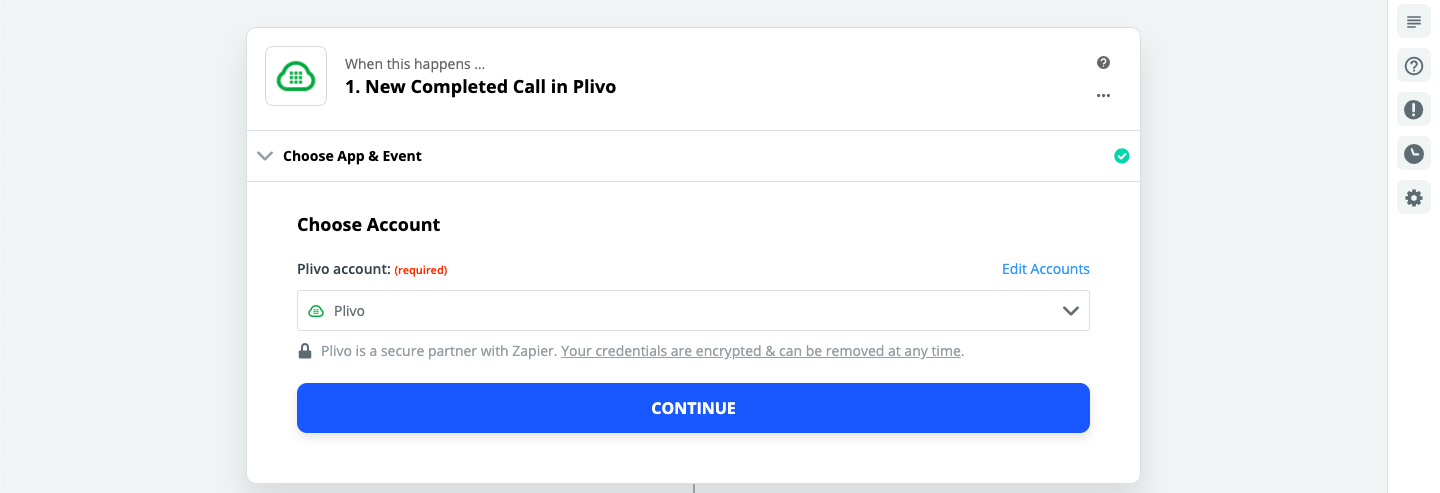
When you click Continue, you’ll be asked to enter your VTS Auth ID and Auth Token, which you can find on the overview page of the VTS console.
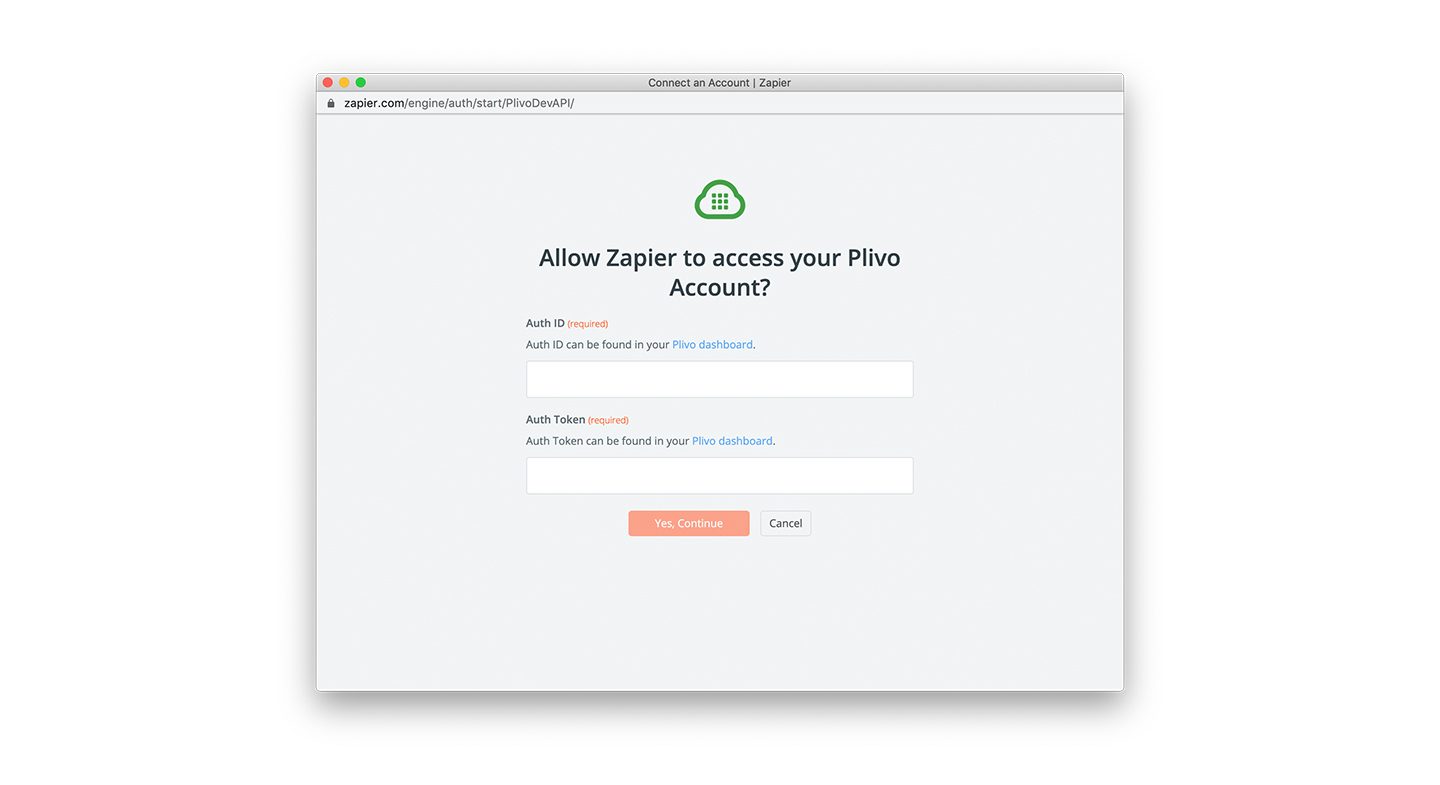
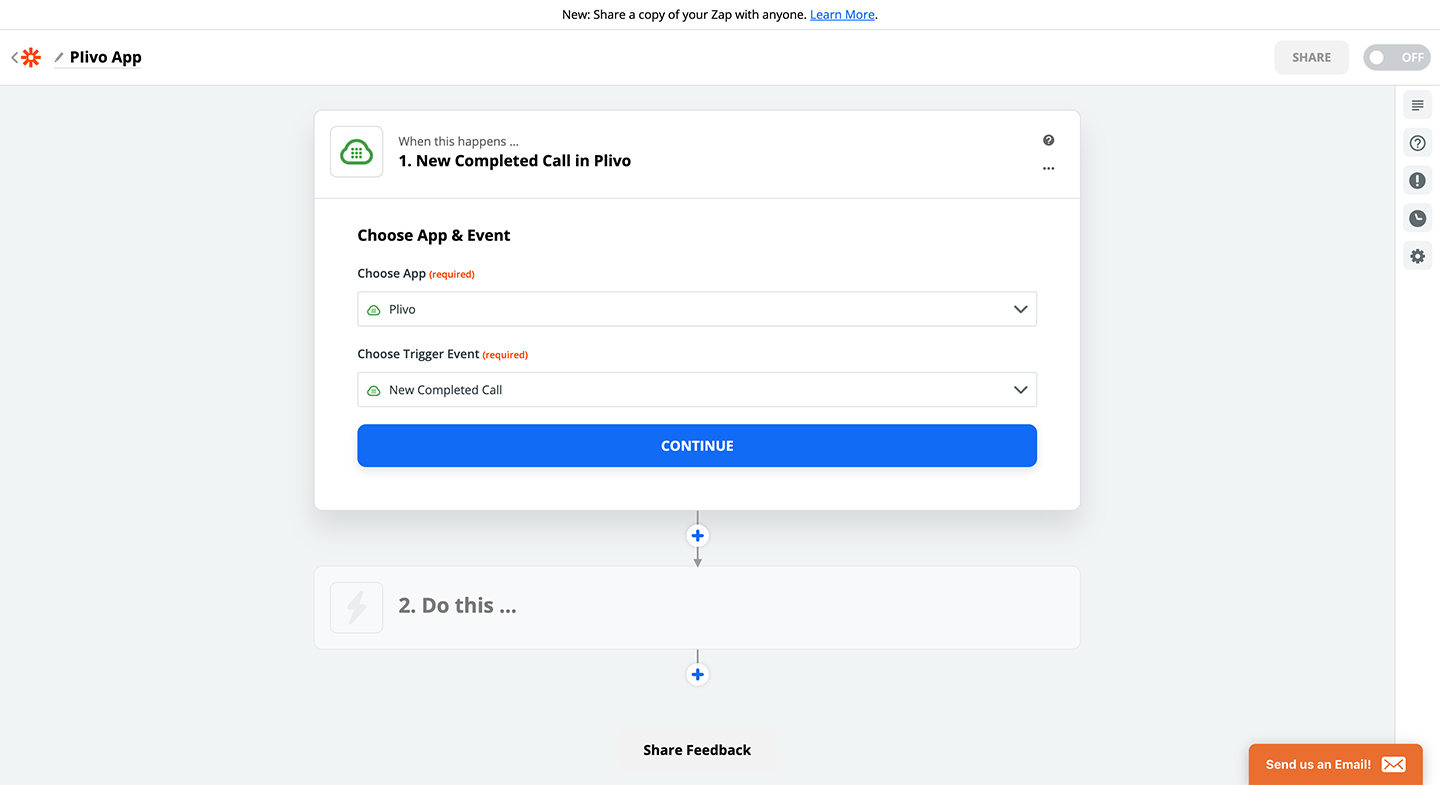
If the authentication credentials are valid, your VTS account will be connected with Zapier. Now choose a trigger event from the drop-down list and click Continue to proceed.
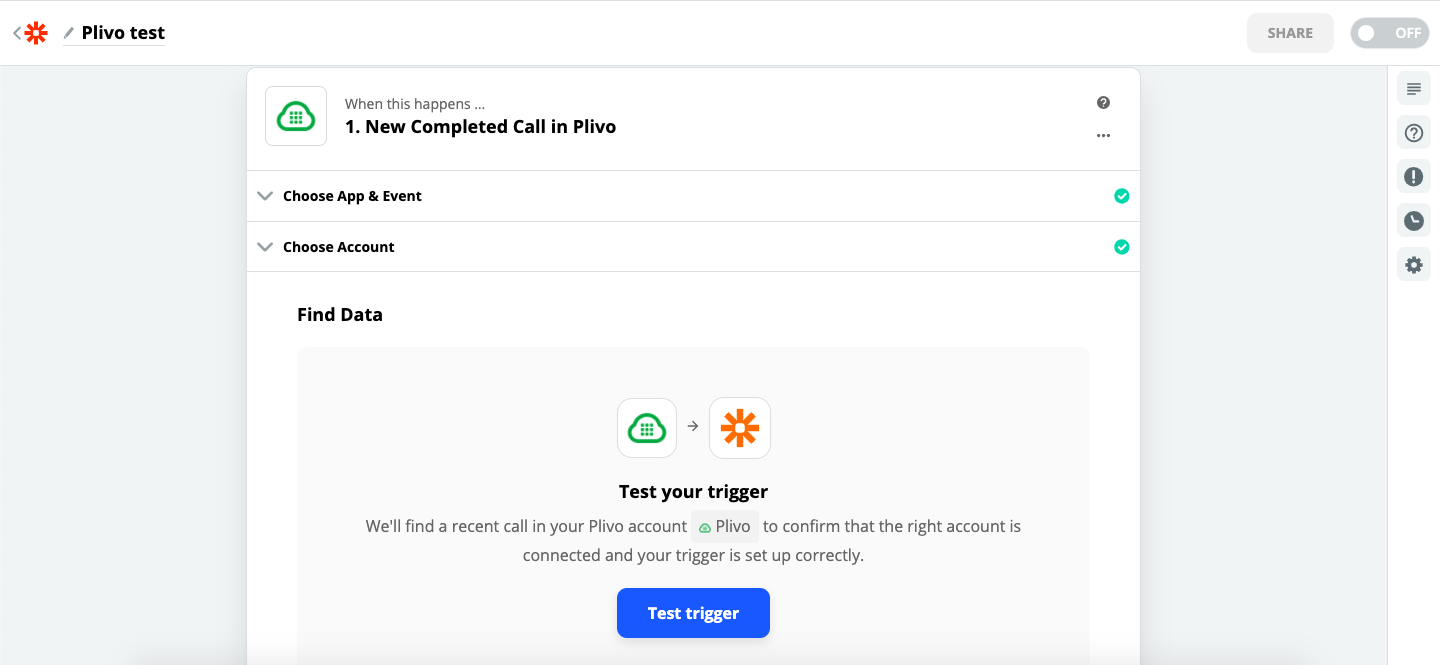
Next, initiate a test by clicking on Test trigger.
Supported triggers
You can use these triggers from the When this happens … drop-down list to trigger your Zap:
- New SMS: Triggers when you receive an SMS message
- New Completed Call: Triggers after a call is completed
Using the New SMS trigger will override the message_url associated with your VTS number if you‘ve already set it.
Supported searches and actions
You can perform these actions from the then do this! drop-down list on Zapier:
- Find Number: Find a phone number by service type
- Make Call & Play Audio: Make a call and play prerecorded audio
- Make Call & Speak Text: Make a call and say a message
- Send SMS: Send an SMS message
If you’re using a VTS trial account, you can send messages and make calls only to verified sandboxed numbers.
More 1-click Automations
Report any feedback or problems with this integration by contacting the VTS support team.